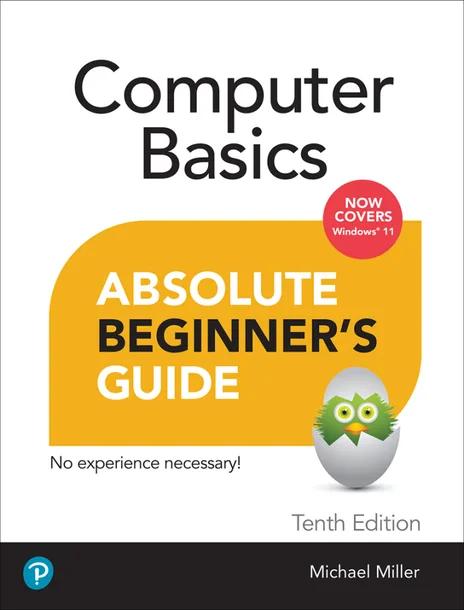
Computer Basics Absolute Beginner's Guide, Windows 11 Edition
by Mike Miller
10th Edition
Publisher: Que Publishing PTG
Book Details
| Print ISBN | 9780137885770 |
| eText ISBN | 9780137885725 |
| Publisher | Que Publishing PTG |
| Publishing Year | 2022 |
| Edition | 10th Edition |
| Language | English |
Computer Basics Absolute Beginner's Guide, Windows 11 Edition, 10th Edition, authored by Mike Miller and published by Que Publishing PTG, provides a complete foundation for beginners and first-time computer users. The textbook guides readers through physical setup procedures and fundamental interface navigation.
Early chapters focus on personalizing the Windows 11 Start menu and desktop layout to suit individual preferences. The material then moves into web navigation using the Microsoft Edge browser, helping learners complete practical online tasks such as shopping, selling goods, and ordering groceries. Additional sections explain how to execute everyday workplace duties with Microsoft Office and attach essential peripheral equipment, including desktop printers and external storage drives.
To maintain system health, the text details protective measures against security risks such as computer viruses, spyware infection, and unsolicited spam. This textbook offers a practical entry point for individuals learning personal computing principles from the ground up.
Table of Contents
Chapter 1: How Personal Computers Work
- • What Your Computer Can Do
- • Good for Getting Online
- • Good for Social Networking
- • Good for Communicating
- • Good for Sharing Photos and Home Movies
- • Good for Entertainment
- • Good for Keeping Informed
- • Good for Work
- • Good for Play
- • Inside a Personal Computer
- • The Motherboard: Home to Almost Everything
- • Microprocessors: The Main Engine
- • Computer Memory: Temporary Storage
- • Hard Disk Drives: Long-Term Storage
- • Solid-State Drives: Faster Long-Term Storage
- • Keyboards: Fingertip Input
- • Mice and Touchpads: Point-and-Click Input Devices
- • Network Connections: Getting Connected
- • Sound Cards and Speakers: Making Noise
- • Video Cards and Monitors: Getting the Picture
- • Other Parts of Your Computer System
- • Providing Additional Functionality with Peripherals
- • Doing What You Need to Do with Software and Apps
- • Making Everything Work...with Windows
- • Different Types of Computers
- • Traditional Desktop PCs
- • All-in-One Desktops
- • Laptop PCs
- • Tablet PCs
- • 2-in-1 PCs
- • Which Type of PC Should You Choose?
- • Don't Worry, You Can't Screw It Up...Much
Chapter 2: Setting Up and Using Different Types of Computers
- • Before You Get Started
- • Setting Up a Laptop or 2-in1 PC
- • Understanding the Elements of a Laptop PC
- • Getting Connected
- • Setting Up an All-in-One Desktop PC
- • Understanding the Parts of an All-in-One System
- • Setting Up a Traditional Desktop PC
- • Understanding the Components of a Desktop System
- • Turning It On--for the First Time
- • Getting the Right Order
- • Powering On
Chapter 3: Getting to Know Windows 11
- • Say Hello to Windows 11
- • Starting and Logging In to Windows
- • Exploring the Windows Desktop
- • Learning Basic Operations
- • Pointing and Clicking
- • Double-Clicking
- • Right-Clicking
- • Dragging and Dropping
- • Mouse Over
- • Moving and Resizing Windows
- • Maximizing, Minimizing, and Closing Windows
- • Snapping Windows into Position
- • Scrolling Through a Window
- • Peeking at the Desktop
- • Using the Start Menu
- • Navigating the Start Menu
- • Launching a Program
- • Using the Taskbar
- • Deciphering Taskbar Icons
- • Opening Applications and Switching Between Windows
- • Using Jump Lists
- • Managing Taskbar Buttons
- • Switching Between Programs
- • Adjusting Quick Settings
- • Viewing Notifications
- • Learning Important Windows Shortcuts
- • Using Windows with a Touchscreen Display
- • Shutting Down Windows--and Your Computer
Chapter 4: Working with Files, Folders, and Online Storage
- • Understanding Files and Folders
- • Using File Explorer
- • Launching File Explorer
- • Exploring the File Explorer Window
- • Displaying File Contents and Details
- • Navigating the Folders on Your PC
- • Viewing Files and Folders
- • Changing the Way Files Display
- • Sorting Files and Folders
- • Grouping Files and Folders
- • Searching for Files
- • Performing Basic File and Folder Operations
- • Creating New Folders
- • Renaming Files and Folders
- • Copying Files
- • Moving (Cutting and Pasting) Files
- • Deleting Files
- • Working with the Recycle Bin
- • Restoring Deleted Files
- • Emptying the Recycle Bin
- • Working with Compressed Folders
- • Compressing a File
- • Extracting Files from a Compressed Folder
- • Copying Files to Another Computer
- • Copying Files over a Network
- • Copying Files with a Portable Drive
- • Copying Files via Email
- • Working with Cloud-Based Storage
- • Accessing OneDrive from File Explorer
- • Using Microsoft OneDrive
- • Syncing Files on Your PC to OneDrive
Chapter 5: Personalizing Windows
- • Personalizing the Windows Desktop
- • Changing the Desktop Background
- • Changing to Light or Dark Mode
- • Changing the Accent Color
- • Choosing a Windows Theme
- • Customizing the Start Menu
- • Pinning Apps to the Taskbar
- • Customizing the Taskbar
- • Personalizing Widgets
- • Customizing the Widgets Panel
- • Adding a New Widget to the Widgets Panel
- • Customizing Your News Feed
- • Personalizing the Lock Screen
- • Changing the Lock Screen Background
- • Displaying a Slideshow on the Lock Screen
- • Changing Your Account Picture
- • Setting Up Additional User Accounts
- • Creating a New User Account
- • Switching Users
- • Signing Out
- • Signing In with Multiple Users
- • Configuring Other Windows Settings
Chapter 6: Connecting Printers and Other Devices to Your PC
- • Getting to Know the Most Popular Peripherals
- • Adding New Hardware to Your System
- • Understanding USB
- • Connecting via USB
- • Connecting and Using a Printer
- • Understanding Different Types of Printers
- • Connecting a Printer via USB
- • Connecting a Wireless Printer to Your Computer
- • Sharing a Network Printer
- • Printing to Your System's Printer
- • Connecting Portable Devices to Your PC
- • Connecting Your PC to Your Living Room TV
- • Connecting via HDMI
- • Wirelessly Mirroring Your Computer Screen
Chapter 7: Using Your PC with Your Mobile Phone
- • Linking Your Phone to Your Windows 11 PC
- • Texting and Calling from Your PC
- • Receiving Text Messages
- • Sending Text Messages
- • Making a Phone Call
- • Doing More with Your Phone and Your Windows PC
- • Sharing a Web Page from Your Phone to Your PC
- • Sharing a Web Page from Your PC to Your Phone
- • Viewing Photos from Your Phone on Your PC
- • Running Android Apps on Your PC
Chapter 8: Adding Storage and Backup
- • Understanding External Storage
- • Connecting an External Drive
- • Backing Up Your Important Files
- • Backing Up to an External Drive
- • Backing Up Online
Chapter 9: Setting Up a Home Network
- • How Networks Work
- • Wired Networks
- • Wireless Networks
- • Setting Up a Wireless Network in Your Home
- • How It Works
- • What You Need
- • Making the Connections
- • Connecting Your Computer to Your New Network
- • Connecting via Ethernet
- • Connecting Wirelessly
- • Accessing Computers on Your Network
Chapter 10: Connecting to the Internet--at Home and Away
- • Different Types of Home Internet
- • Understanding Internet Hardware
- • Connecting to a Public Wi-Fi Hotspot
Chapter 11: Browsing and Searching the Web
- • Understanding the Web
- • Using Microsoft Edge
- • Browsing the Web with Edge
- • Revisiting History
- • Opening Multiple Pages in Tabs
- • Saving Your Favorite Pages
- • Returning to a Favorite Page
- • Displaying the Favorites Bar
- • Displaying a Page with Immersive Reader
- • Browsing in Private
- • Setting a Different Start Page
- • Using Google Chrome
- • Searching the Web with Google
- • Using Google Search
- • Constructing a Query
- • Fine-Tuning Your Search Results
Chapter 12: Buying and Selling Online
- • How to Shop Online
- • Step 1: Find an Online Store
- • Step 2: Find a Product
- • Step 3: Examine the Product (Virtually)
- • Step 4: Order the Product
- • Step 5: Check Out
- • Step 6: Confirm the Order
- • How to Shop Safely
- • Ordering Meal and Grocery Delivery Online
- • Ordering Meals Online
- • Ordering Groceries Online
- • Buying and Selling on Online Marketplaces
- • Craigslist
- • eBay
- • Etsy
- • Facebook Marketplace
- • Reverb
Chapter 13: Sending and Receiving Email
- • How Email Works
- • POP/IMAP Email
- • Web-Based Email
- • Using the Windows Mail App
- • Navigating the Mail App
- • Adding Another Email Account
- • Reading and Replying to Messages
- • Viewing Attachments
- • Sending a New Message
- • Attaching a File
- • Using Web-Based Email
- • Using Outlook Online
- • Using Gmail
Chapter 14: Video Chatting with Friends and Family
- • Video Chatting with Zoom
- • Getting to Know Zoom
- • Accepting a Meeting Invitation
- • Joining a Meeting Manually
- • Switching Views
- • Applying a Virtual Background
- • Leaving a Meeting
- • Starting a New Instant Meeting
- • Scheduling a Meeting in Advance
- • Starting and Ending a Meeting
- • Video Chatting with Microsoft Teams
- • Blurring Your Background
- • Launching a New Teams Meeting
Chapter 15: Social Networking with Facebook, Twitter, and Other Social Media
- • Using Facebook
- • Signing Up with and Signing In to Facebook
- • Getting to Know Facebook
- • Searching for Friends
- • Viewing a Friend's Profile Page
- • Posting Status Updates
- • Determine Who Can--or Can't--See a Status Update
- • Viewing Friends' Updates in Your Feed
- • Managing Your Privacy on Facebook
- • Using Twitter
- • Joining Twitter
- • Navigating Twitter
- • Tweeting with Twitter
- • Following Other Users
- • Customizing Your Profile
- • Using Pinterest
- • What Pinterest Is and What It Does
- • Navigating the Pinterest Site
- • Viewing Boards and Pins
- • Repinning Existing Items
- • Pinning Items from the Web
- • Creating New Boards
- • Using LinkedIn
- • Personalizing Your Profile
- • Finding New Connections
- • Contacting Other LinkedIn Members
- • Using Social Networks--Smartly and Safely
- • Protecting Your Children
- • Protecting Yourself
Chapter 16: Installing and Using Desktop Applications
- • Finding and Installing New Apps
- • Downloading Apps from the Microsoft Store
- • Purchasing Apps from Your Local Retailer
- • Finding and Installing Apps Online
- • Understanding Web-Based Apps
- • Managing Your Apps
- • Finding Your Installed Apps
- • Pinning Apps to the Start Menu
- • Pinning Apps to the Taskbar
- • Adding App Shortcuts to the Desktop
- • Working with Applications
- • Using Toolbars and Ribbons
- • Using Menus
- • Closing an Open App
Chapter 17: Doing Office Work
- • Getting to Know Microsoft Office
- • Using Office on the Desktop
- • Using Office on the Web
- • Which Version of Office Should You Use?
- • Word Processing with Microsoft Word
- • Exploring the Word Workspace
- • Working with Documents
- • Entering Text
- • Editing Text
- • Formatting Text
- • Checking Spelling and Grammar
- • Printing Your Document
- • Number Crunching with Microsoft Excel
- • Exploring the Excel Workspace
- • Entering Data
- • Inserting and Deleting Rows and Columns
- • Adjusting Column Width
- • Calculating with Formulas
- • Including Other Cells in a Formula
- • Quick Addition with AutoSum
- • Using Functions
- • Formatting Your Spreadsheet
- • Creating a Chart
- • Giving Presentations with Microsoft PowerPoint
- • Exploring the PowerPoint Workspace
- • Applying a Theme
- • Inserting New Slides
- • Adding and Formatting Text
- • Start the Show!
- • Exploring Google Docs
- • Using Google Docs Word Processor
- • Using Google Sheets Spreadsheet
- • Using Google Slides Presentations
- • Using the Windows Calendar App
- • Displaying Different Views
- • Creating a New Event
Chapter 18: Working with Digital Photos
- • Transferring Pictures from Your Camera, Smartphone, or Tablet
- • Downloading from the Internet
- • Transferring Photos from a Smartphone or Tablet via USB
- • Transferring Pictures from a Digital Camera via USB
- • Transferring Pictures from a Memory Card
- • Scanning a Picture
- • Viewing Your Photos with the Windows Photos App
- • Editing Your Photos with the Photos App
- • Opening Editing Mode
- • Cropping or Rotating a Photo
- • Applying Filters
- • Adjusting Brightness
- • Adjusting Color
- • Printing and Sharing Your Photos
- • Choosing the Right Printer and Paper
- • Making the Print
- • Printing Photos Professionally
- • Sharing Your Photos
Chapter 19: Watching Movies and TV Shows Online
- • Watching Streaming Video Services
- • Watching Amazon Prime Video
- • Watching Apple TV+
- • Watching Discovery+
- • Watching Disney+
- • Watching HBO Max
- • Watching Hulu
- • Watching Netflix
- • Watching Paramount+
- • Watching Peacock
- • Watching Other Streaming Video Services
- • Watching Live TV Online
- • Buying and Renting Movies Online
- • Watching Videos on YouTube
Chapter 20: Listening to Music and Podcasts Online
- • Listening to Streaming Music Online
- • Listening to Pandora
- • Listening to Spotify
- • Listening to Other Streaming Music Services
- • Listening to Traditional Radio Stations Online
- • Purchasing and Downloading Digital Music
- • Examining Online Music Stores
- • Playing Downloaded Music on Your PC
- • Listening to Podcasts Online
Chapter 21: Protecting Your PC from Computer Attacks, Malware, Spam, and More
- • Safeguarding Your System from Computer Viruses
- • Watching for Signs of Infection
- • Catching a Virus
- • Practicing Safe Computing
- • Disinfecting Your System with Antivirus Software
- • Hunting Down Spyware
- • Fighting Email Spam
- • Protecting Your Email Address
- • Blocking Spammers in Your Email Programs
- • Resisting Phishing Scams
- • Shielding Your Children from Inappropriate Content
- • Using Content-Filtering Software
- • Encouraging Safe Computing
Chapter 22: Performing Preventive Maintenance and Dealing with Common Problems
- • Maintaining Your Computer
- • Cleaning Up Unused Files
- • Removing Unused Programs
- • Optimizing Your Disk Storage
- • Updating Windows
- • Keeping Your Hardware in Tip-Top Condition
- • System Unit
- • Keyboard
- • Display
- • Printer
- • Maintaining a Laptop PC
- • Using the Windows Mobility Center
- • Conserving Battery Life
- • Securing Your Laptop
- • Troubleshooting Computer Problems
- • Troubleshooting in Safe Mode
- • Reacting When Windows Freezes or Crashes
- • What Causes Windows to Freeze?
- • Dealing with Frozen Windows
- • Dealing with a Frozen Program
- • Dealing with a Major Crash
- • Refreshing or Resetting Your System
- • Refreshi
Customer Reviews
0.0
0 reviews
No reviews yet. Be the first to review this book!
Write a Review
Reviewed by GradeFocus Editorial Team
▶Research Sources (13)
- Computer Basics Absolute Beginner's Guide, Windows 11 Edition
- Computer Basics Absolute Beginner's Guide, Windows 11 Edition
- eBook Details | KSCC Campus Store | BibliU
- Computer Basics Absolute Beginner's Guide, Windows 11 Edition
- Computer Basics Absolute Beginner's Guide, Windows 11 Edition
- eBook Details | Alabama Aviation College Bookstore
- Computer Basics Absolute Beginner's Guide, Windows 11 Edition
- Computer Basics Absolute Beginner's Guide, Windows 11 Edition
- Absolute Beginner's Guide Computer Basics, Windows 11 ...
- Miller Michael - Absolute Beginner's Guide Computer ...
- Computer Basics Absolute Beginner's Guide, Windows 11 ...
- Computer Basics for Absolute Beginners 🖥️ Step-by-Step ...
- Absolute Beginner's Guide Series